

If you are part of Conroe ISD in Texas, you have probably heard the words “SSO” many times. Teachers say it in class. Parents see it in emails. Students type it into Google when something goes wrong on the first day of school.
In this guide, I will explain Conroe SSO in plain words. You will learn what it is, who uses it, how to sign in, and what to do when the login does not work. I wrote it so that a student, a parent, or a new teacher can follow it without any tech skills.
One quick note before we start. Schools change their systems from time to time. The steps below come from the official Conroe ISD help pages at the time of writing. If something looks different on your screen, check the district website or ask your school.
What Is Conroe SSO?
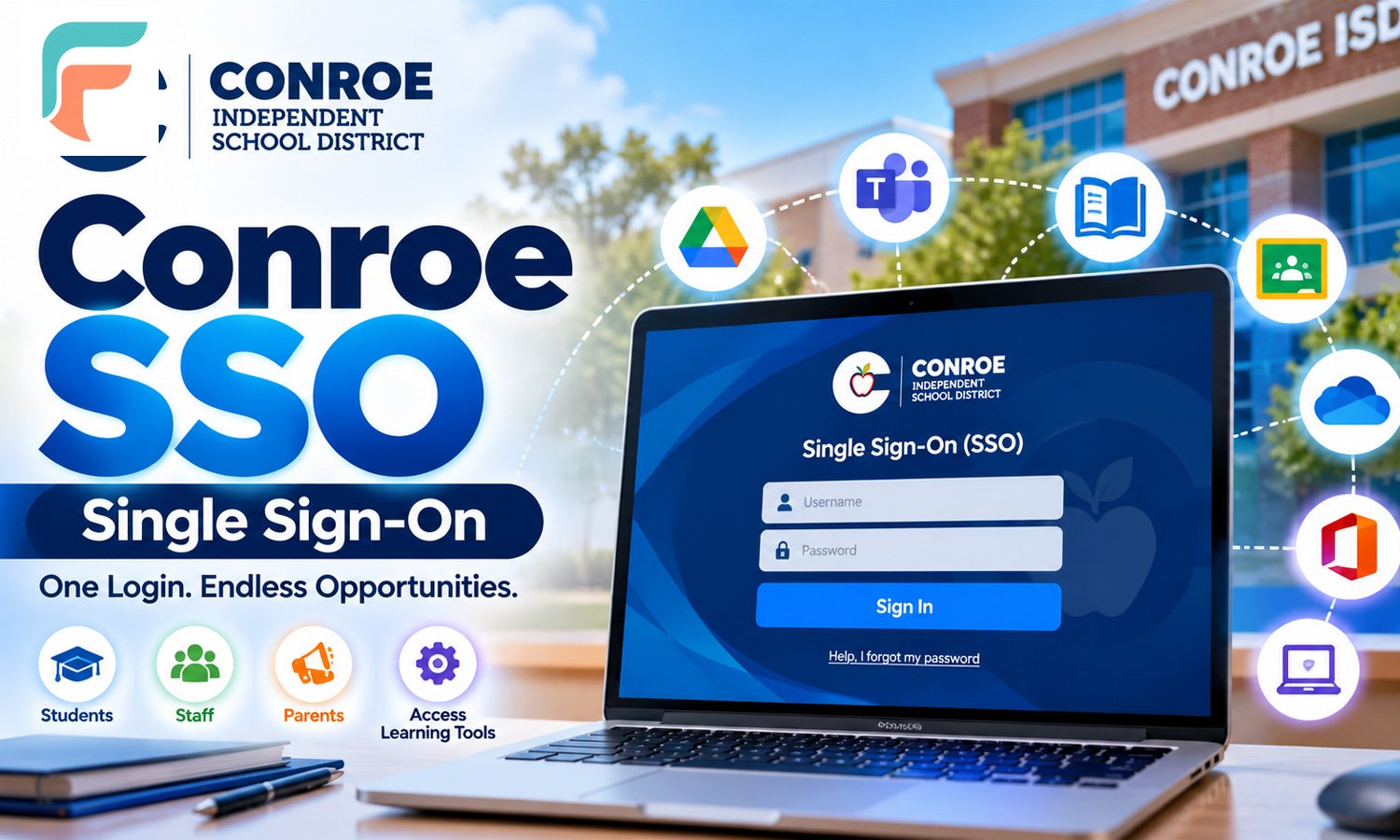
SSO means Single Sign-On. It is a way to log in one time and then open many school apps without typing your password again and again.
Think of it like a front door to a big building. You open the door once, and then you can walk into many rooms. In Conroe ISD, the rooms are things like Canvas for classes, online books, and other tools your school uses.
The Conroe ISD help center says the district SSO login screen is a ClassLink page. You can find it at sso.conroeisd.net. That means when you hear “Conroe SSO”, people are usually talking about the ClassLink login and the dashboard you see after you sign in.
Why does a school district use this? There are a few good reasons:
- Students do not need to remember a separate password for every app.
- Teachers can find their tools in one place.
- The district can keep accounts safer, because there is one main login to protect.
- Help is easier, because many problems have the same few fixes.
Who Uses Conroe SSO?
Students
Students use SSO the most. After they log in, they can open the apps their teachers want them to use. Many students use SSO every school day, often on a school Chromebook.
Teachers and Staff
Staff use SSO too. The district also uses it for employee apps. Teachers also use the SSO dashboard to help students. For example, a teacher of record can reset a student password from the dashboard.
Parents and Guardians
Here is something that confuses many families. Parents do not usually use the student SSO login. Parents have a separate Parent Portal account. The Conroe ISD parent help page explains how to set up or log in to that account.
If you changed your email address and cannot get into the Parent Portal, the district says you need to register a new account with your current email. After that, you should contact the registrar or PEIMS staff member at your child’s campus and ask them to link your student to the new account.
So the short answer is this: students and staff use SSO, and parents use the Parent Portal.
What You Need Before You Log In
Before you try to sign in, make sure you have these things:
- Your username. Your school or teacher gives you this.
- Your password. For students, this may be a password your teacher gave you.
- A device with internet. A school Chromebook, a laptop, or a tablet all work.
- A good web browser. Use an up-to-date browser, and try to avoid old tabs that have been open for days.
If you are a new student, ask your teacher or campus office for your login details on the first day. Do not guess. We will talk about why in the lockout section.
How to Log In to Conroe SSO (Step by Step)
Here is the simple way to sign in:
- Open your web browser.
- Go to sso.conroeisd.net. You can also start from the Conroe ISD website and look for the SSO link.
- Type your username.
- Type your password.
- Follow any extra steps on the screen. Some students may be asked to finish a picture step.
- After you sign in, you will see your dashboard with your apps.
Take your time when you type. A wrong letter or a caps lock key is the most common reason for a failed login.
New Student Passwords for the 2026-2027 School Year
This part is important for students and parents, because the district changed the way first passwords work.
According to the Conroe ISD help center, starting with the 2026-2027 school year, the district uses a new random first password for each student account. Students do not know this password ahead of time. A teacher or campus administrator gives it to them on the first day of school.
The district says the new password is easier to type than a very hard password, but safer than the old standard.
Here is how it works for different ages:
- Younger students (PK to Grade 2): They use the password they were given for the whole school year. They are not asked to change it.
- Students in Grade 3 and above: They use the first password only for their first login. Then the system asks them to make a new password of their own.
If you are a parent, here is a simple tip. Help your child write the new password in a safe place at home, but do not stick it on the Chromebook or the back of the laptop. A small notebook kept at home is a better idea.
What Is the Picture Login?
Some Conroe ISD help pages mention a Picture (MFA) login or an MFA image. MFA means multi-factor login. It is a fancy name for a second step that proves it is really you.
For some students, the second step is choosing a picture. If a student forgets the picture or it does not work, a teacher can reset the MFA image. The district has a guide for teachers called “How to Reset a Student’s MFA Image.”
So if your child says “it keeps asking for my picture,” tell them to ask a teacher for help.
QR Codes for Younger Students
Typing a long username and password is hard for a five-year-old. The district knows this. Teachers can print QuickCards, which are QR codes. According to the staff help page, younger students in PK to Grade 2 and some special education students often use these codes to sign in fast.
If your child is in a young grade and uses a card, keep it safe. A lost card should be reported to the teacher.
What Can You Do After You Log In?
Once you are inside SSO, you will see tiles or icons for your apps. Which apps you see depends on your school and your role. Students often use:
- Canvas for class lessons and homework.
- Online textbooks that teachers choose for each course.
- Other learning tools that the district has approved.
Staff members see other apps for their work.
If you are a teacher and you find a new app you want to use in class, you cannot just add it. The district says every piece of software must go through a review. This protects students, staff, and the community. If an app looks blocked, it may still be waiting for review.
Need help inside Canvas? One Conroe ISD school page says to click Help under the login, then Report a Problem. After you fill in the form, a district Canvas technician will answer.
What Happens If You Get Locked Out?
Sometimes you type your password wrong a few times. This is normal. Do not worry.
The Conroe ISD help center says the system locks an account after 5 wrong tries. The lock lasts 5 minutes. This is for security, so that nobody can keep guessing a password.
Here is what to do:
- Stop typing. More tries will not help.
- Wait 5 minutes. Look at a clock and take a short break.
- Try again slowly. Check caps lock and spelling.
- Still not working? Ask a teacher for help.
There is one very important tip from the district for teachers. Resetting a password does not end the 5 minute lockout. The student still has to wait. So if your child is locked out, wait first, and then try again with the right password.
Forgot Your Student Password? Here Is What to Do
If you are a student and you forgot your password, you do not need to panic. The district says any one of your teachers can help you.
Step 1: Ask a teacher
Tell your teacher you need an SSO password reset. The teacher logs in to SSO and creates a temporary password for you.
Step 2: Log in with the temporary password
Go to sso.conroeisd.net. Type your username and the temporary password your teacher gave you.
Step 3: Make a new password
The system will ask you to create a new password right away. Type it two times to confirm it. Pick something you can remember but others cannot guess easily.
For parents, the official parent FAQ says that students in grades 5 to 12 who have trouble logging in should ask any of their teachers for a temporary reset. If the problem is the picture login, a teacher can reset that too.
Forgot Your Staff Password?
Staff members have an easier way. The Conroe ISD staff help page says to click the link called “Help, I Forgot My Password” under the login box. Then type your username and follow the steps to make a new password.
The district also gives this tip: after you change your password, log out of all your devices and log in again with the new one. This helps to stop lockouts. Many people forget to do this. Their phone or old laptop keeps trying the old password in the background, and the account locks again.
A Note for Teachers: How to Reset a Student Password
If you are a teacher of record, here is the short version of the district steps:
- Open the My Classes tool. You find it with the backpack icon at the bottom of your SSO dashboard. You only see it if you have students on your roster.
- Find the student by searching in your class list.
- Type a temporary password. The district says to use 8 or more characters, all lowercase, with no special characters. Do not use easy patterns like “123” or “abc”.
- Press Reset.
You can also reset many students at once by checking several names. After the reset, the student has to make a new password.
One more thing to know. Only the student’s official teacher of record can reset the password. That is why a librarian or another staff member cannot do it. This rule keeps student accounts safe.
The Chromebook “Forgot OLD Password” Screen
Sometimes a student changes the password and then sees a screen on a Chromebook that says “Forgot OLD Password.” It looks scary, but it is common.
The district says to choose “Proceed Anyway” or follow the on-screen steps to clear local data. If the problem is still there, the next step is to wipe the Chromebook. Ask your teacher or campus tech person to help with this. Do not do it alone if you are not sure, because it clears data stored only on that device.
Easy Fixes That Solve Many Login Problems
Before you ask for help, try these simple checks. They solve a lot of cases.
- Check caps lock. Passwords are case sensitive in many systems.
- Check the username. Make sure you did not type extra spaces.
- Use the right page. Go to the official SSO page, not a link from a strange message.
- Wait out the lockout. Give it the full 5 minutes.
- Close old tabs. Then open a fresh browser window.
- Check your internet. A weak signal can cause strange errors.
- Log out of other devices. This matters after a password change.
- Check your spam folder. If you expect an email from the district, look in Junk too. The district also suggests you accept mail from conroeisd.net.
Stay Safe When You Use SSO
A single login is handy, but it also means one password opens many doors. So it is worth protecting.
Here are some safe habits:
- Never share your password with a friend, even a close one.
- Do not write it on your device. A sticky note on a Chromebook is easy for anyone to read.
- Log out on shared devices. This is important at the library or on a family computer.
- Be careful with emails. The school will not ask you to send your password in a message.
- Tell an adult if you think someone else used your account.
Parents can help by talking about these habits at home. It takes five minutes, and it can save a lot of trouble later.
Who to Contact When Nothing Works
If you tried everything and you still cannot log in, here is who to ask:
- Students: Ask any of your teachers first.
- Parents: Contact your child’s teacher or campus. For Parent Portal links, contact the registrar or PEIMS staff member at the campus.
- Staff: Use the “Help, I Forgot My Password” link, then ask your campus tech contact if you need more help.
- Canvas problems: Use Help, then Report a Problem inside Canvas.
The district also has a Knowledge Base website with step by step guides. You can search it for your problem.
Final Thoughts
Conroe SSO is not hard once you know the basics. You go to the right page, type your username and password, and then open the apps you need. When something goes wrong, the fix is usually simple: wait out a lockout, ask a teacher for a temporary password, or log out of old devices.
Remember these key points:
- Students and staff use SSO. Parents use the Parent Portal.
- Five wrong tries cause a five minute lock.
- Teachers can reset student passwords, and the new password must be changed right away.
- Keep your password private, and use only the official login page.
If you are still stuck, do not feel bad. Everybody forgets a password sometimes. Ask for help, and you will be back in your account soon.
Frequently Asked Questions About Conroe SSO
1. What does Conroe SSO mean?
SSO means Single Sign-On. In Conroe ISD, it is a login system where you sign in one time and then open many school apps. The district login page is on ClassLink at sso.conroeisd.net.
2. Where do I go to log in to Conroe SSO?
Open your browser and go to sso.conroeisd.net. You can also start from the Conroe ISD website. Always check that you are on the official district page before you type your password.
3. Who gives students their first password?
Starting in the 2026-2027 school year, the district uses a new random first password. Students do not know it ahead of time. A teacher or campus administrator gives it to them on the first day of school.
4. Do students need to change their first password?
It depends on the grade. Students in Grade 3 and above are asked to create their own password after their first login. Younger students in PK to Grade 2 keep their given password for the whole school year.
5. My child forgot the SSO password. What should we do?
Ask your child to talk to any of their teachers. A teacher of record can create a temporary password. Then your child signs in with it and makes a new one right away. The parent FAQ says this is the way for students in grades 5 to 12.
6. Why does my account say it is locked?
The system locks an account after 5 wrong password tries. The lock lasts 5 minutes. Wait for the time to pass, then try again with the correct password.
7. Can I reset the password to unlock the account faster?
No. The district says a reset does not stop the 5 minute timer. You still have to wait. After the timer ends, you can sign in with the correct password or get a reset if you forgot it.
8. Can parents use the same login as students?
Usually not. Parents use the Parent Portal, which is a separate account. If you changed your email and lost access, you must register a new account and then ask the campus registrar or PEIMS staff to link your student to it.
9. What should I do if a Chromebook shows “Forgot OLD Password”?
Choose “Proceed Anyway” or follow the on-screen steps to clear local data. If it still does not work, ask a teacher or campus tech person about wiping the Chromebook.
10. Why can’t a librarian or another staff member reset a student password?
Only the student’s official teacher of record can do it. The district keeps this rule to protect student accounts. If the first teacher is not around, the student can ask any of their other teachers.