

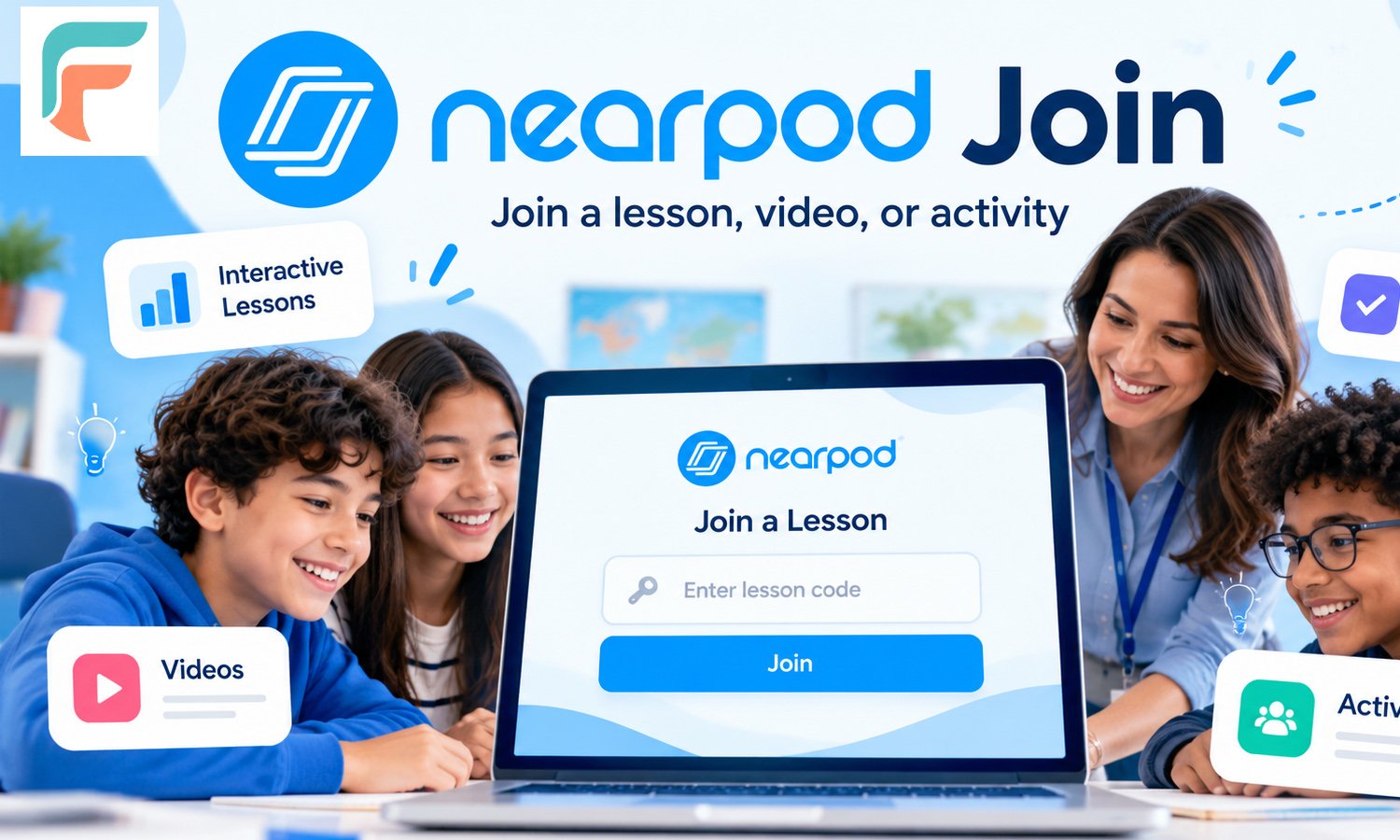
Nearpod join is the way students get into a Nearpod lesson with a code or a link from their teacher. It takes less than a minute, and most students do not need an account. This guide shows you the steps on a computer, a phone, and a tablet. You will also learn what to do when a code does not work, how live and student-paced lessons are different, and how teachers can help the whole class join faster.
What Does Nearpod Join Mean?
Nearpod join means entering a lesson that your teacher made in Nearpod. Nearpod is a website and app where teachers build lessons with slides, videos, quizzes, polls, and other activities. When a teacher starts a lesson, Nearpod gives it a short join code. Students use that code to enter the same lesson.
Most students do not need a Nearpod account for this. You only need the code or link, a device, and an internet connection. The page most people use is join.nearpod.com, and it has one job: it lets you type a code and go straight to the lesson.
Teachers use Nearpod in two main ways. In a live lesson, the whole class learns together. In a student-paced lesson, each student works alone at their own speed. Both types use the same join steps, so you do not need to learn two different ways.
What Do You Need Before You Join a Nearpod Lesson?
You need four simple things before you join: a device, an internet connection, a code or link, and the name your teacher wants you to use.
Here is a short checklist:
- A device. A laptop, Chromebook, tablet, or phone all work. A bigger screen is easier for reading slides and drawing, but a phone is fine if it is all you have.
- Internet. A weak connection can make slides load slowly or cause errors. If your Wi-Fi is bad, move closer to the router.
- A join code or link. Your teacher shows the code on the board, says it out loud, or posts it online. The code is short, usually five letters.
- Your name. Many teachers ask for a first name and last initial. Ask before you type something funny, because your teacher can see every name.
Also use an up-to-date browser. Chrome, Edge, Safari, and Firefox are common choices. If one browser gives you trouble, try another one.
How Do You Join a Nearpod Lesson in 3 Easy Steps?
You join a Nearpod lesson by getting the code, opening the join page, and typing the code. Here are the steps in detail.
Step 1: Get the code from your teacher
Look at the board or your class page. If you are in a live lesson, the code is often at the top of the teacher’s screen. If you are doing homework, the code may come in an email, a message, or a class post.
Write the code down if you can. Codes do not work forever. Your teacher can end a session, and then the code may stop working.
Step 2: Open the join page
On a computer, open your browser and go to join.nearpod.com. You will see a box where you can type your code.
Be careful with the address. Some websites look like Nearpod but are not made by Nearpod. If your teacher gave you a different link, use that one.
Step 3: Type the code and your name
Type the code exactly as your teacher shows it. Then press the join button or the arrow next to the box. Nearpod will ask for your name. Type it, and the lesson will open.
That is all. If the code is right and the lesson is open, you will see the first slide or a waiting screen. In a live lesson, you may need to wait a moment until your teacher starts.
How Do You Join With the Nearpod App?
You join with the app by opening it on your phone or tablet and typing the same code in the join field. The Nearpod app is free to download from your device’s app store.
After you open the app, look for the option to join a lesson. Button names can change when the app updates, so look for the box that asks for a code. Type your code, add your name, and wait for the lesson to load.
The app can be easier than a browser on a small screen. It is also a good choice if your school gave you a tablet. If the app gives you trouble, you can still use join.nearpod.com in your phone’s browser.
Can You Join With a Link or From Google Classroom?
Yes, you can join with a link, and many schools also let you join from their learning system. Some teachers skip the code and share a direct link. When you click it, Nearpod opens the lesson, and you only need to type your name.
Many schools connect Nearpod to tools like Google Classroom, Canvas, or Schoology. In that case, your teacher posts the Nearpod lesson as an assignment. You open the assignment, click the Nearpod link, and start. You do not type a code at all.
A link has one small risk. If you click an old link, it may show an ended lesson. If that happens, ask your teacher for a new link or a new code.
What Is the Difference Between Live and Student-Paced Lessons?
A live lesson is controlled by the teacher, while a student-paced lesson is controlled by you. Both use the same join steps, but they feel different.
| Live lesson | Student-paced lesson | |
|---|---|---|
| Who moves the slides? | The teacher | You |
| When do you do it? | During class | In class or at home |
| Can you go back? | Usually no, unless the teacher allows it | Often yes, when the teacher allows it |
| Best for | Group talks and quick checks | Practice, review, and homework |
In a live lesson, your screen follows your teacher. This is good for staying together as a class. In a student-paced lesson, you click through the slides yourself. You can take your time on hard parts, but you also need to stay focused because no one is guiding you.
Your teacher may also set an end date for student-paced work. Check the due date so you do not lose your chance to finish.
What Can You Do After You Join?
After you join, you can read slides, watch videos, and answer questions in many different ways. Nearpod lessons are not only slides. The activities make you take part, which helps you remember more.
Here are some activities you may see:
- Quizzes. You pick answers and may see your score.
- Polls. You vote on a question, and the class can see the results.
- Open-ended questions. You write your own answer.
- Draw It. You draw or label something with your finger or mouse.
- Matching pairs. You connect words or pictures that go together.
- Fill in the blanks. You type the missing words in a sentence.
- Collaborate boards. You post ideas on a shared board, a bit like sticky notes on a wall.
- Virtual field trips. You look around a place in 360 degrees on your screen.
Your teacher can see answers while you work. This helps them see who needs more help. It also means you should answer honestly and write only things that are right for school.
Why Is My Nearpod Join Code Not Working?
A join code usually fails because of a typing mistake, an ended lesson, or a wrong page. The good news is that most problems are easy to fix. Try these steps in order:
- Check the code. Look at each letter again. Letters like I and L, or O and zero, can look similar on some screens.
- Ask your teacher for the code again. The session may have ended, or the teacher may have started a new one with a new code.
- Make sure you are on the join page. The login page is for teacher accounts. Students should use join.nearpod.com or the join option in the app.
- Refresh the page. A slow load can cause strange errors. Reload and try again.
- Try another browser or device. If Chrome fails, try Edge or Safari. You can also try the app.
- Turn off browser add-ons. Ad blockers and some school safety tools can block parts of a page. Try again without them if your school allows it.
- Check your internet. Open another website to see if it loads. If not, fix your connection first.
- Ask for a link. A direct link from your teacher can work when the code does not.
If nothing works, tell your teacher. They can check the session and, if needed, ask Nearpod support for help. Nearpod also has a help center with guides for common problems.
How Can Teachers Help Students Join Faster?
Teachers can save time by sharing the code clearly, testing the lesson first, and giving students a simple routine. A few small habits make a big change in the first five minutes of class.
- Show the code in big letters. Put it on the board and also say it out loud.
- Test the lesson before class. Open it on a second device and join as a student. You will find problems before the class does.
- Use a link when it makes sense. If your class already uses an online assignment page, post the link there. Students click once and start.
- Make more than one code when needed. Nearpod lets a teacher launch more than one code for the same lesson. This can help when two groups need separate sessions.
- Set name rules. Tell students how to write their names. This makes reports easier to read later.
- Keep a backup plan. If the internet is slow, have a paper copy of the key questions.
- Teach the steps once. Spend two minutes on the first day to show students how to join. After that, it becomes a habit.
Is It Safe to Join a Nearpod Lesson?
Joining a Nearpod lesson is safe when you use the code or link from your teacher and keep the code inside your class. Nearpod is a well-known education tool, and schools use it worldwide.
Still, use common sense. Do not post the join code on social media. Do not share it with people who are not in your class. Use only the name your teacher asks for, and do not type personal details like your address or phone number.
Parents who want to learn more can read Nearpod’s privacy information on its website or ask the school which privacy rules apply.
Conclusion
Nearpod join is simple once you know the steps: get the code, open join.nearpod.com or the app, and type your code and name. If you have a link, just click it and enter your name. When something goes wrong, check the code, try another browser, and ask your teacher for help. With these tips, you can spend less time on setup and more time on the lesson.
Frequently Asked Questions About Nearpod Join
1. What is Nearpod join?
Nearpod join is the step where a student enters a teacher’s lesson. You do this with a short code or a link. Most students go to join.nearpod.com, type the code, add their name, and start. You can also use the free Nearpod app on a phone or tablet.
2. Do I need an account to join a Nearpod lesson?
Most of the time, no. Students can join with only a code or a link and their name. Some schools connect Nearpod to a class platform, and then you may sign in through that platform. Teachers need an account to make and launch lessons.
3. How long is a Nearpod join code?
A Nearpod join code is short. It is usually five letters. Type it exactly as your teacher shows it. If it does not work, check each letter and ask your teacher to confirm it, because a new session may have a new code.
4. Where do I type my Nearpod code?
Type it in the code box on join.nearpod.com. In the Nearpod app, use the join option and type it there. Do not use the teacher login page. If your teacher gave you a direct link, you do not need to type a code at all.
5. Can I join Nearpod on my phone?
Yes. You can use your phone’s browser and go to join.nearpod.com, or you can download the free Nearpod app. The app can be easier to use on a small screen. Make sure your phone has a good internet connection before you start.
6. Why does Nearpod say my code is invalid?
The most common reasons are a typing mistake or a lesson that has ended. Check each letter, then ask your teacher for the code again. Also make sure you are on the student join page and not a login page. A new link from your teacher can help.
7. What is the difference between live and student-paced Nearpod lessons?
In a live lesson, the teacher controls the slides, and the whole class moves together. In a student-paced lesson, you move through the slides yourself. Student-paced lessons are often used for practice or homework. Both types use the same join steps, so you do not need anything extra.
8. Can my teacher see my answers?
Yes. Teachers can see student responses to quizzes, polls, and open questions. This helps them know who needs help. Because of this, use the name your teacher asked for and write only school-friendly answers. If you are unsure about a rule, ask your teacher.
9. Can I join a Nearpod lesson late?
Often yes, if the session is still open. Enter the code and your name as usual. In a live lesson, you may join in the middle and land on the current slide. If the session has ended, ask your teacher for a new code or a student-paced link.
10. Is Nearpod free for students?
Students can join lessons without paying, and the Nearpod app is free to download. Schools or teachers may pay for extra features, but students do not need to buy anything to join. If a website asks you for payment just to enter a lesson, stop and ask your teacher.